
FM Viewer

About FM Viewer

Previously, the following simulation results were provided in written form (2D images), but we have now started providing them as electronic data (DWG format).
By using the dedicated "FM Viewer*" to load the electronic data, you can view the results in 3D from any angle on your computer. Because you can freely zoom in and rotate the "part you want to see," it helps with more intuitive understanding than traditional still images, allowing for a deeper understanding of the simulation content.

*The 'FM' in FM Viewer is an abbreviation for FireMarshal, which is a general term for simulation programs.

Simulation programs that can be viewed with FM Viewer

  • Radiant heat calculation simulation
  • Foam emission simulation
  • Water radiation simulation
  • Tank fire extinguishing simulation

You can watch a demo video using FM Viewer here.

Features of FM Viewer

Modifiable simulation conditions

The FM Viewer allows you to change the conditions of the loaded simulation results and re-simulate under different conditions. The main conditions that can be changed are as follows:

  • Weather conditions (wind direction and wind speed)
  • Foam and water spray nozzle direction
  • Water spray nozzle spray angle
  • Height of the surface receiving radiant heat
  • Map display radiation intensity
  • Tank fire extinguishing methods

Please note that the FM viewer does not allow you to change the type of oil stored in the tanks, the radiation characteristics of foam cannons and water cannons, or their placement.
If you wish to change these conditions, please contact us as described in "Changes to Exclusion Conditions" below.

Control panel included

The FM Viewer runs on AutoCAD and uses a "control panel" that is easy for even beginners to use.
Easy operation: No complex command input required. Everything can be done with just button presses.
Reliable support: Explanations are displayed when you hover your cursor over each button, so even first-time users can proceed smoothly.

Changes to the conditions for exclusion

If you wish to change conditions that cannot be operated with the FM viewer, such as the type of oil stored in the tanks, the radiation characteristics and placement of foam and water cannons, please contact us (this service will incur a fee).
Please provide the data and conditions listed below, and after further consideration, we will provide you with the simulation results.

Data and conditions to be provided by the customer

  • Anticipated tank fires, swimming pool fires
  • Weather conditions (wind, temperature, humidity, etc.)
  • Plant layout diagram data (.dwg)
  • Tank Data Sheet
  • Data on types of oil handled
  • Fire prevention and extinguishing equipment datasheets and performance curves

Regarding the discontinuation of sales of FIRE MARSHAL

With the introduction of the FM Viewer, we have decided to discontinue sales of our simulation software (product name: FIRE MARSHAL). We apologize for any inconvenience this may cause. For customers who have already purchased the software, we will continue to provide maintenance services as before, based on your maintenance contract.

Demo video by viewer

You can see the entire simulation program in the "FM Viewer demo video." Experience the "reality" that cannot be fully conveyed by photos alone, such as the actual operation feel and graphic expression. This will give you a clearer picture of how to use it after implementation.

01

Radiant heat calculation simulation

02

Foam emission simulation

03

Water radiation simulation

04

Tank fire extinguishing simulation

Viewer Download

The FM viewer can be downloaded from here.
We also provide sample data so you can check the actual operation before requesting a simulation. Please feel free to use it.

Installation Instructions

01

Preparation

Installation of "AutoCAD" and "Microsoft VBA Module for AutoCAD"

Before installing the FM viewer, install "AutoCAD" and the "Microsoft VBA Module for AutoCAD".
This is unnecessary if it is already installed.
If you do not already own AutoCAD, please purchase a new copy or try the 15-day trial version.

⚠When you proceed to the AutoCAD download page via the link above, you will see a message stating, "You do not need to download the software if you only need to view the files." However, the FM viewer requires the AutoCAD software itself to function, so please proceed with the download.

02

Installing the FM Viewer

download

First, please download the FM viewer using the button below.

Download FM Viewer

⚠When downloading with Google Chrome, a warning will appear stating, "FMViewer.zip is not a commonly downloaded file and may be harmful." However, there is nothing wrong with the file itself. Click the hat icon "^" on the far right of the warning and select "Continue" to download.

install

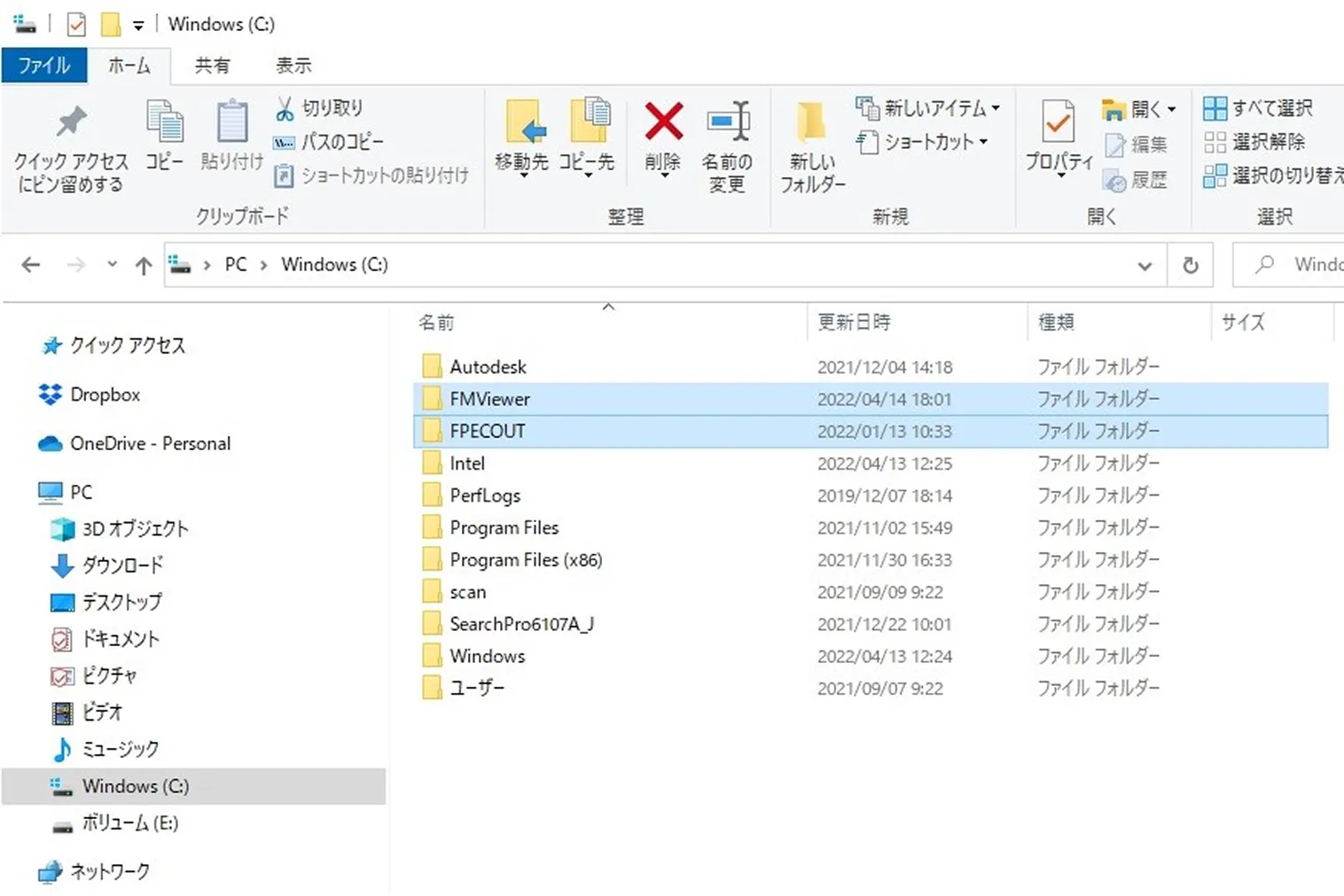
  1. When you unzip the FM viewer (Zip file), two folders will be extracted: "FMViewer" and "FPECOUT".

  2. As shown in the diagram below, copy both folders entirely to the root of the C drive.

    FMViewerとFPECOUTフォルダをCドライブ直下にコピーする図
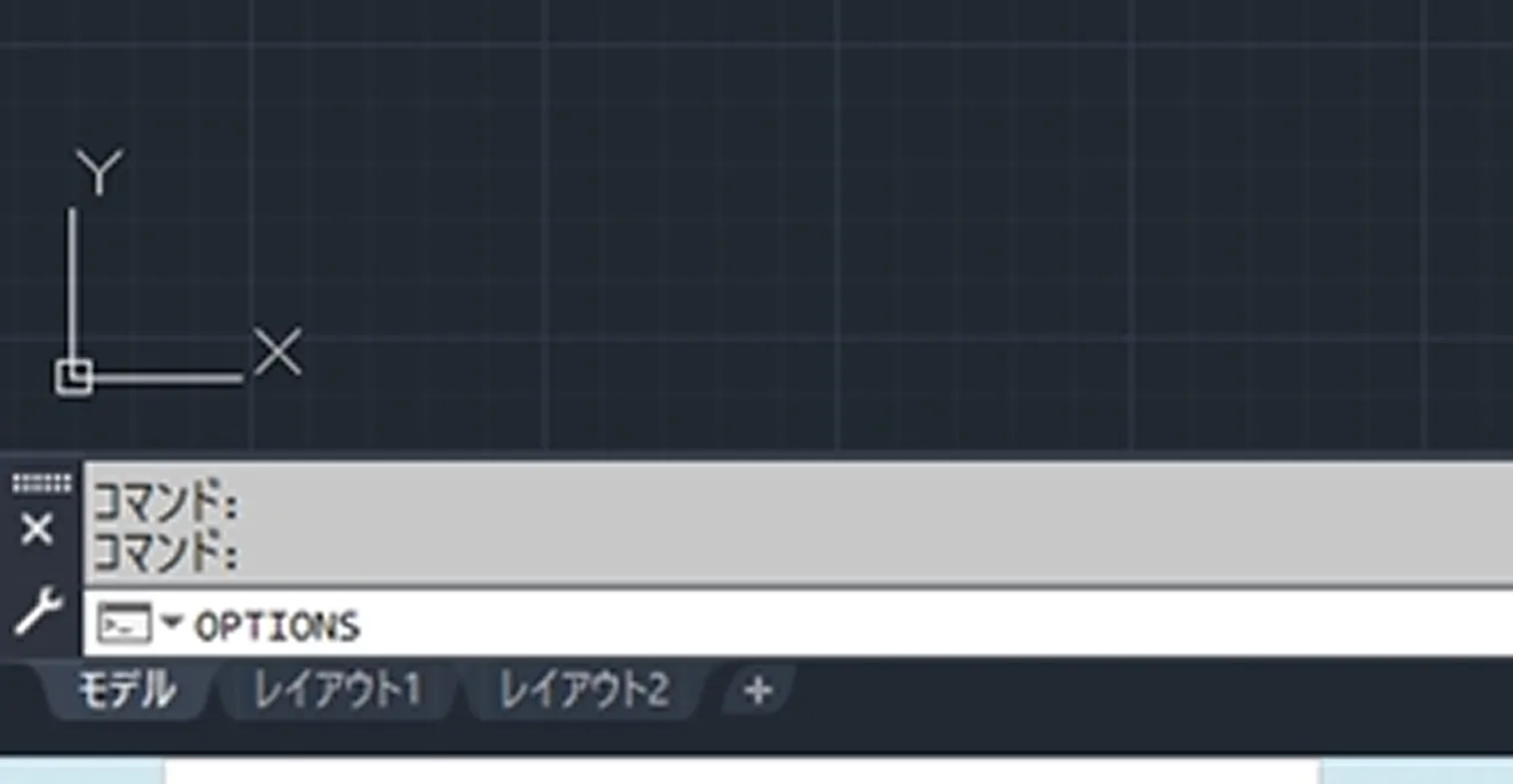
  3. Launch AutoCAD, type "options" in half-width characters into the command bar at the bottom of the screen, and then press Enter.

    AutoCADのコマンド欄にoptionsと入力する図
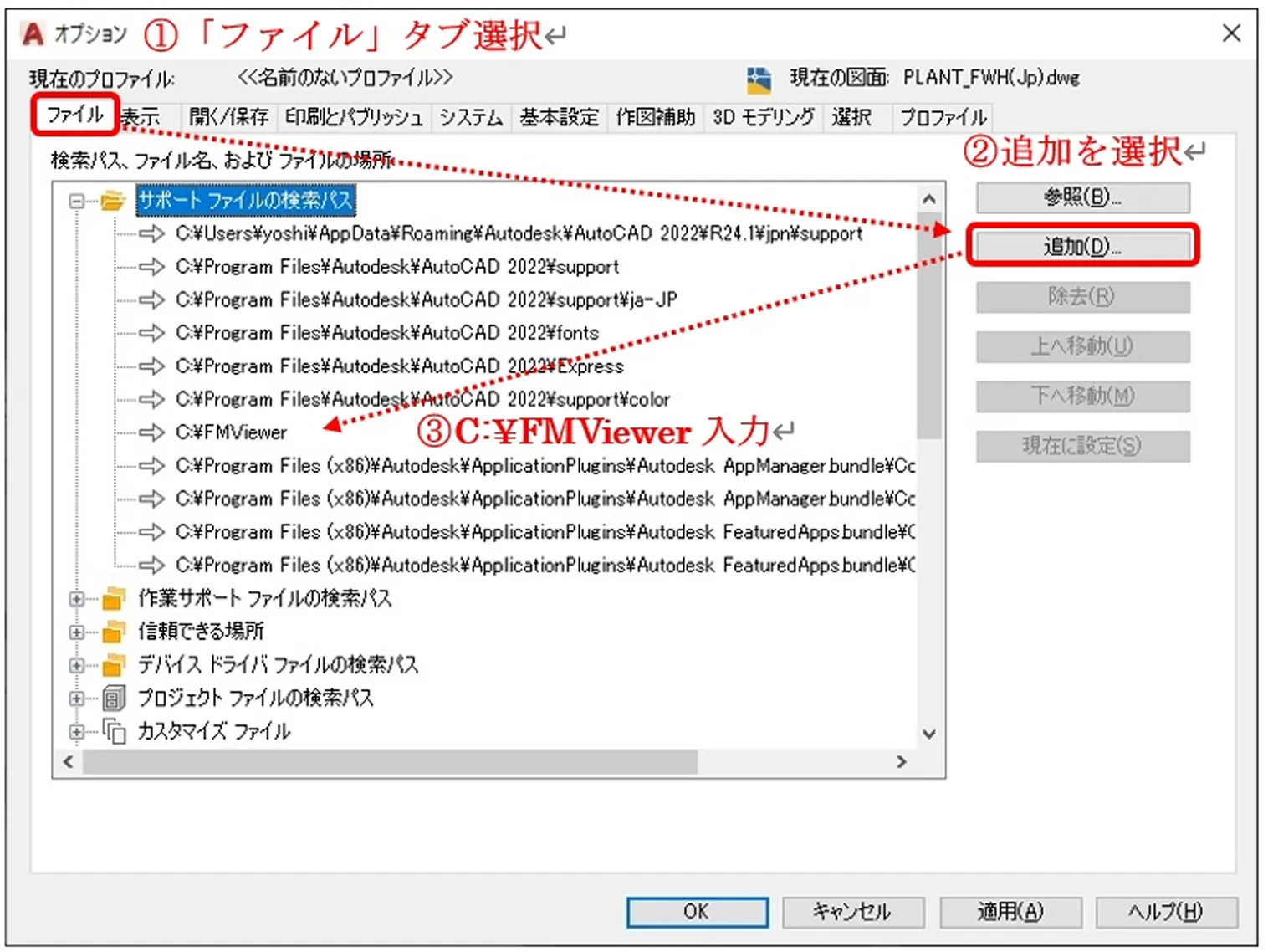
  4. As shown in the image below, an options page will appear. Select the "File" tab and add "C:\FMViewer" to the search path for support files.

    AutoCADオプションのファイルタブでFMViewerのパスを追加する図
03

Sample data for viewer

There are two sample data sets available for the viewer:

1. PLANT FWH(Jp).dwg

Fire simulation target

  • Leakage fire in the process area (pump yard)

Simulation program used in FM viewer

  • Radiant heat calculation simulation
  • Foam emission simulation
  • Water radiation simulation

remarks

  • Tank fire extinguishing simulations are not available.

2. TANK FWHF(Jp).dwg

Fire simulation target

  • Crude oil tank T-211 catches fire
  • Light oil tank spill fire inside containment dike

Simulation program used in FM viewer

  1. Crude oil tank T-211 catches fire
    - Tank fire extinguishing simulation
    - Water radiation simulation
  2. Diesel fuel tank containment dike pool fire
    - Radiant heat calculation simulation
    - Foam emission simulation
    - Water radiation simulation

remarks

  • In tank fire extinguishing simulations, it is necessary to associate the foam cannon with the tank being extinguished.
  • The tank fire extinguishing simulation is only compatible with tank fires (1.). It cannot be used for pool fires (2.).
  • The radiant heat calculation simulation covers tank fires (1) and swimming pool fires (2).
04

Launching the FM viewer

Startup procedure

Double-click the sample data for the viewer.

AutoCAD will start automatically.

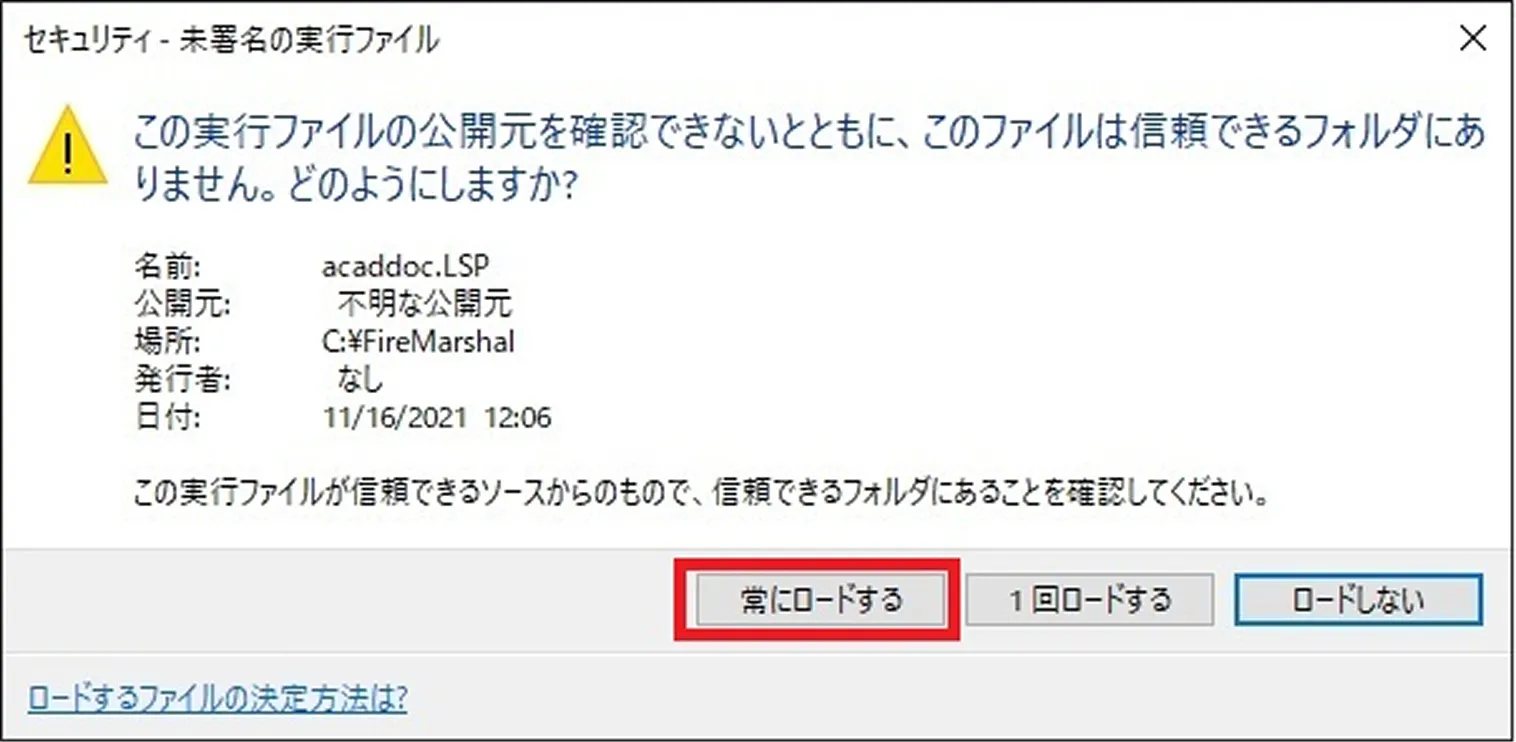
AutoCAD自動起動時のメッセージ画面

⚠ You may see the following message multiple times during automatic startup; please select "Always load".

Next, the FM Viewer (control panel) will start automatically.

Please follow the on-screen instructions.
The control panel's buttons are generally arranged in the order in which they should be used. Additionally, hovering the cursor over a button displays "Control Tip Text," allowing you to check how to use it.

Points to note when operating the FM viewer

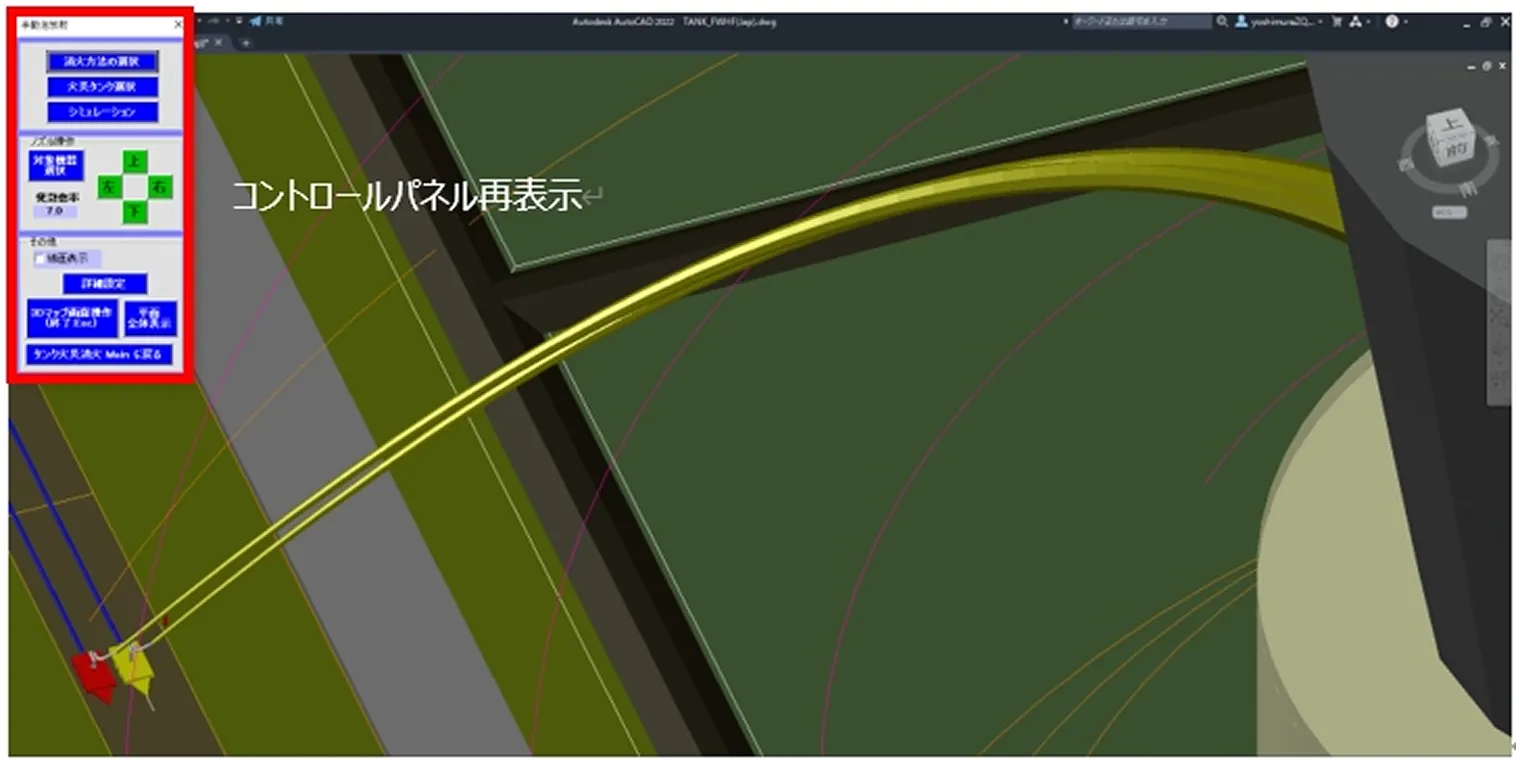
Redisplay the control panel

Press the Esc key to redisplay.

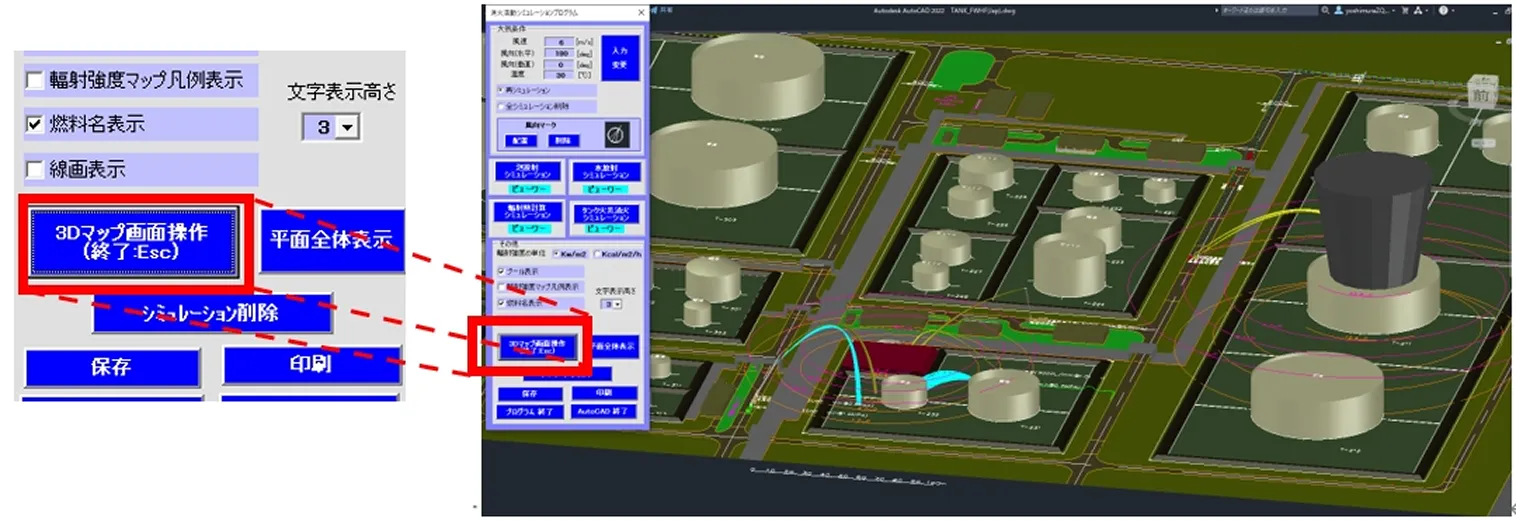
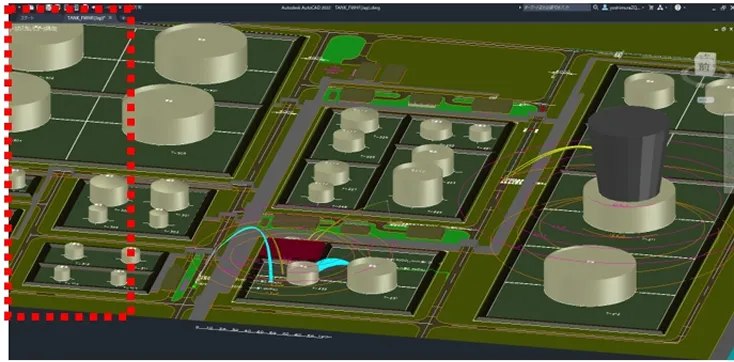
When I operate the 3D map screen, the control panel disappears from the screen.
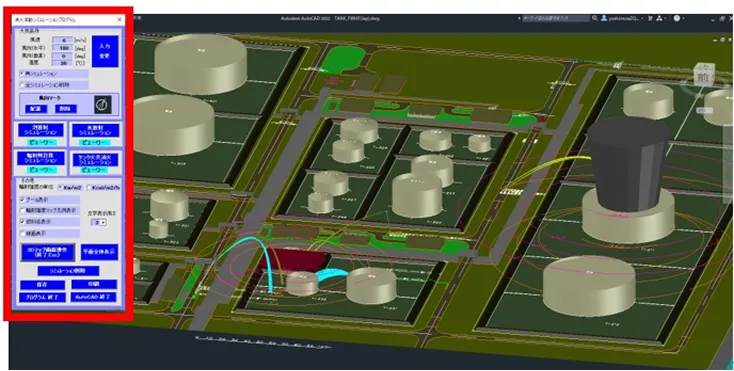
To return to the Control Panel after completing all operations, simply press the Esc key on your keyboard. Similarly, if you accidentally click on something, pressing the Esc key will display the last visible Control Panel window.

Escキーの図
3Dマップ画面操作を選択するとコントロールパネルが非表示になる状態

Selecting 3D map screen operation hides the control panel.

Escを押してコントロールパネルが再表示された状態

Pressing Esc will refresh the Control Panel.

Entering Enter after selecting multiple items

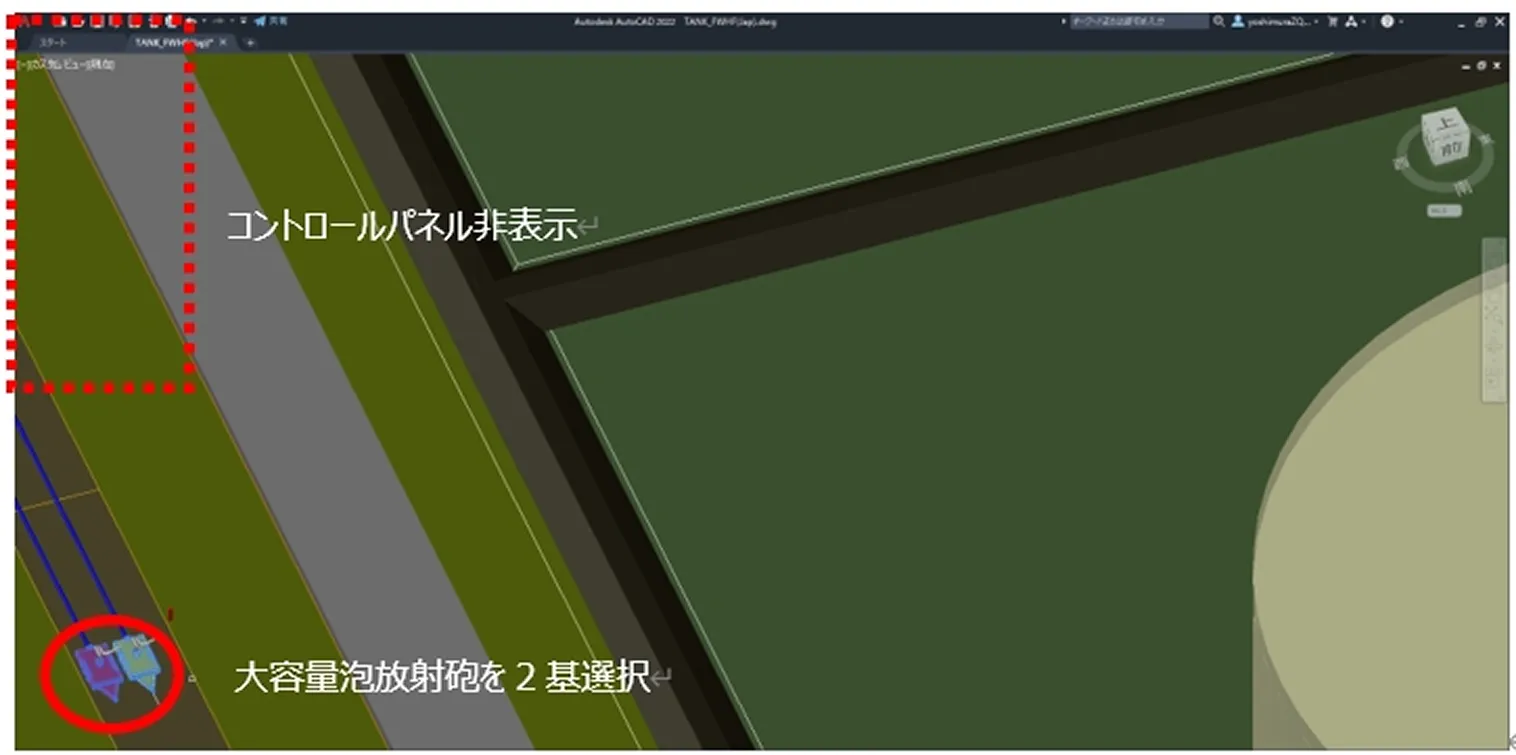
When selecting multiple rocket launchers for simulation, for example, the control panel disappears from the screen when a multiple selection screen appears.

The image below shows a tank fire extinguishing simulation with two high-capacity foam cannons selected. Because multiple cannons are selected, the control panel is hidden. Pressing Enter will run the simulation.

放射砲を複数選択してコントロールパネルが非表示になっている状態

The image below shows the simulation completion screen. The control panel will reappear once the simulation has finished running.

シミュレーション完了画面でコントロールパネルが再表示された状態

About rocket launchers

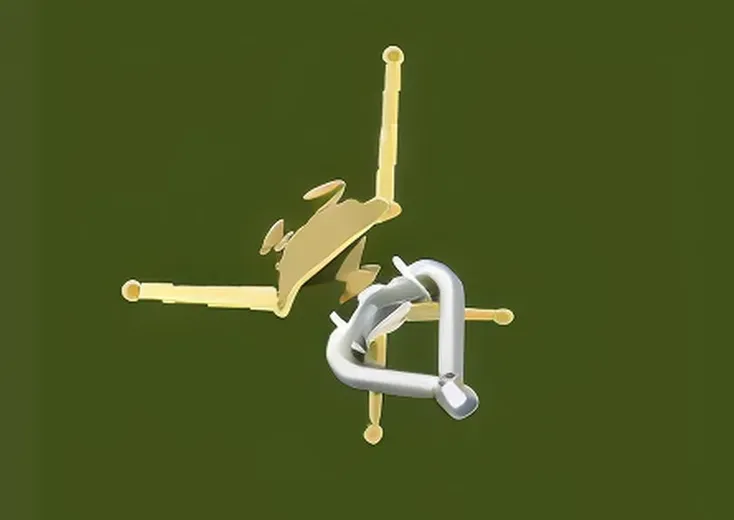
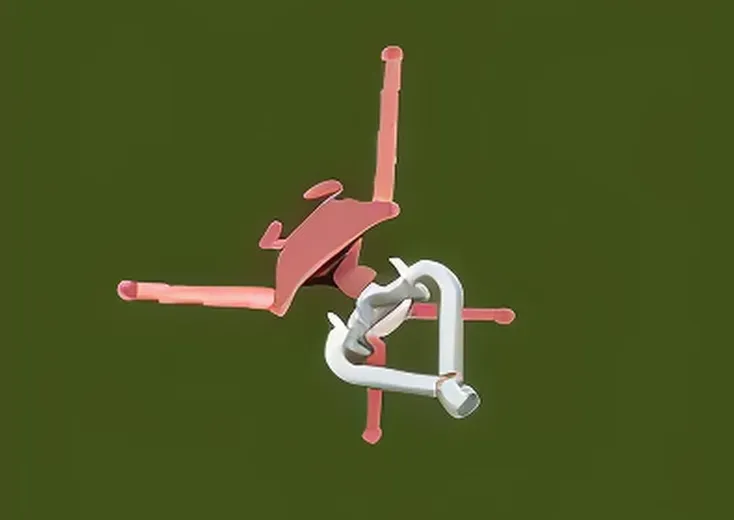
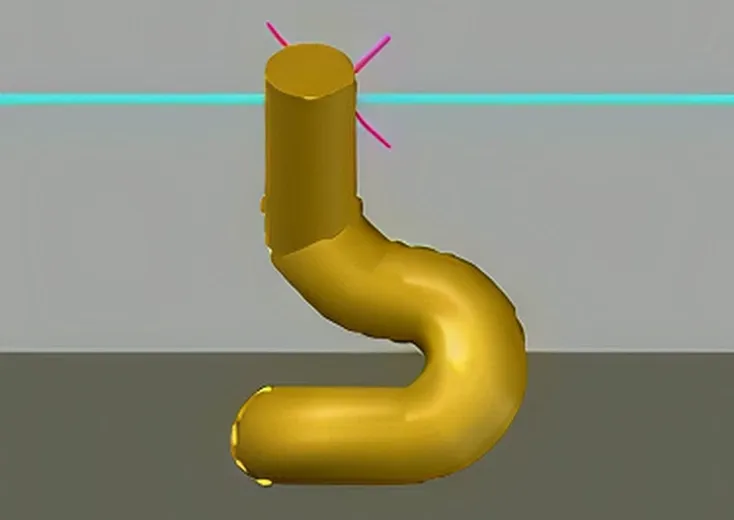
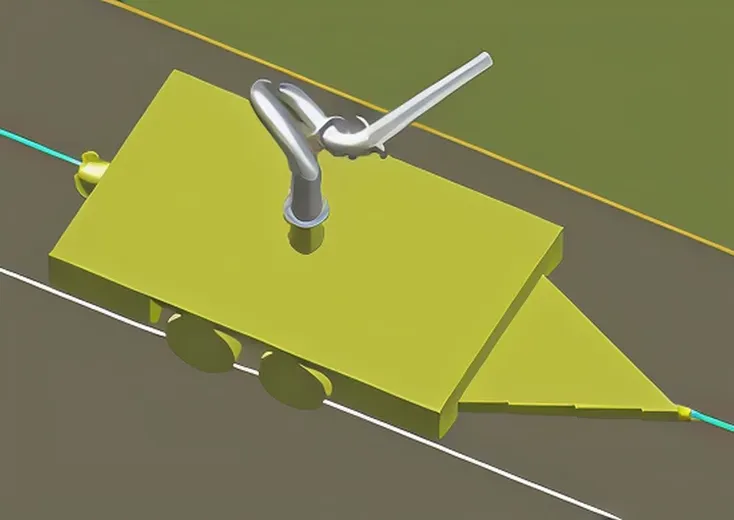
The foam cannon, water cannon, and high-capacity foam cannon are displayed in the viewer's sample data as follows. Also, the color changes when you select a cannon.

Foam Cannon

Normal time

泡放射砲通常時の表示

Selected

泡放射砲選択中の表示
Water cannon

Normal time

水放射砲通常時の表示

Selected

水放射砲選択中の表示
High-capacity foam cannon

Normal time

大容量泡放射砲通常時の表示

Selected

大容量泡放射砲選択中の表示

⚠To select the rocket launcher, please click on the hull, not the nozzle.

FM Viewer Operating Environment

It should work fine as long as it's the latest version of AutoCAD.